
Sign in and find your way around
Learn how to sign in, move around the dashboard, and understand the main areas of Club OS.
Updated 18 Mar 2026
Overview
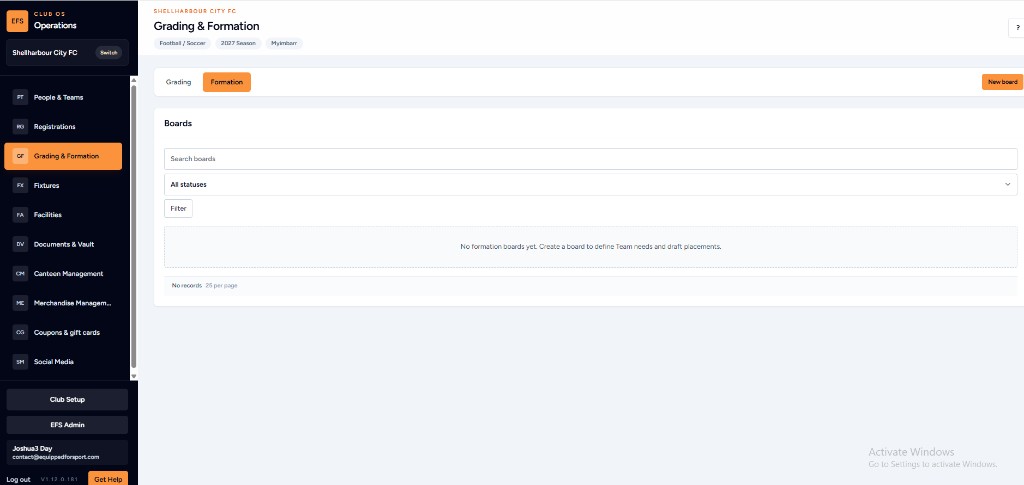
After your account has been created, you can sign in to Club OS and use the dashboard to access the areas your role is allowed to use. Your menu may look different from another volunteer’s menu because access is based on the work each person needs to do.
This helps keep the system simple. You should only see the sections that are relevant to your role, rather than every possible club function.
Before you start
- Make sure you have received an invitation or account confirmation from your club.
- Use the email address that was invited by the club administrator.
- Keep your password private and do not share accounts between volunteers.
Steps
- Open the Club OS sign-in page for your club.
- Enter your email address and password.
- Select Sign in.
- Review the dashboard cards or menu items available to you.
- Open the area you want to work in, such as Documents, People & Teams, Payments, Communications or Settings.
Understanding the dashboard
The dashboard is designed to show the most important areas first. Some cards may show tasks, alerts, recent activity or shortcuts. The side menu gives you access to the broader areas of the system. On smaller screens, the menu may collapse behind a menu button.
If you cannot see a page you expected to use, your account may not have access to it yet. That does not always mean something is broken. It usually means a club administrator needs to adjust your role or permissions.
Troubleshooting
- If your password does not work, use the password reset option or ask your club administrator to check your account.
- If your invitation has expired, ask for a new invitation.
- If a page is missing, ask an administrator to confirm your access.
Tip: Use one account per person. This keeps activity history accurate and makes handover safer.